
Attendance and Assignment Reports 🔗
Accessing Attendance and Assignment Reports in Dropout Detective and Grade Guardian
Step 1: Access the Reports Tab 0:00

- Click on the Reports tab at the top of the page.
- Scroll down to the bottom under that tab.
Step 2: Download Attendance CSV 0:13

- Locate the Attendance CSV report.
- Click on the Download button.
- Once ready, a notification will appear at the top, stating 'Click Here' is ready to view.
Step 3: Review Attendance Details 0:31
- The attendance report will display:
- Course ID
- Course name
- Teacher's name
- Student SIS ID
- Student name
- Date of attendance
- Attendance status (present/absent)
- Timestamp of attendance.
Step 4: Download Attendance Summary CSV 0:47

- Find the Attendance Summary CSV report.
- Download it in the same manner as the Attendance CSV.
- Wait for the green notification indicating it is ready.
Step 5: Review Attendance Summary Details 1:04

- The summary report will include:
- Course information
- Student data
- Total number of times present
- Total number of times absent
- Attendance percentage
- Latest absence and attendance dates.
Step 6: Check for A+ or Roll Call Attendance 1:26
- Ensure that A+ or Roll Call attendance is enabled in Canvas to access the reports.
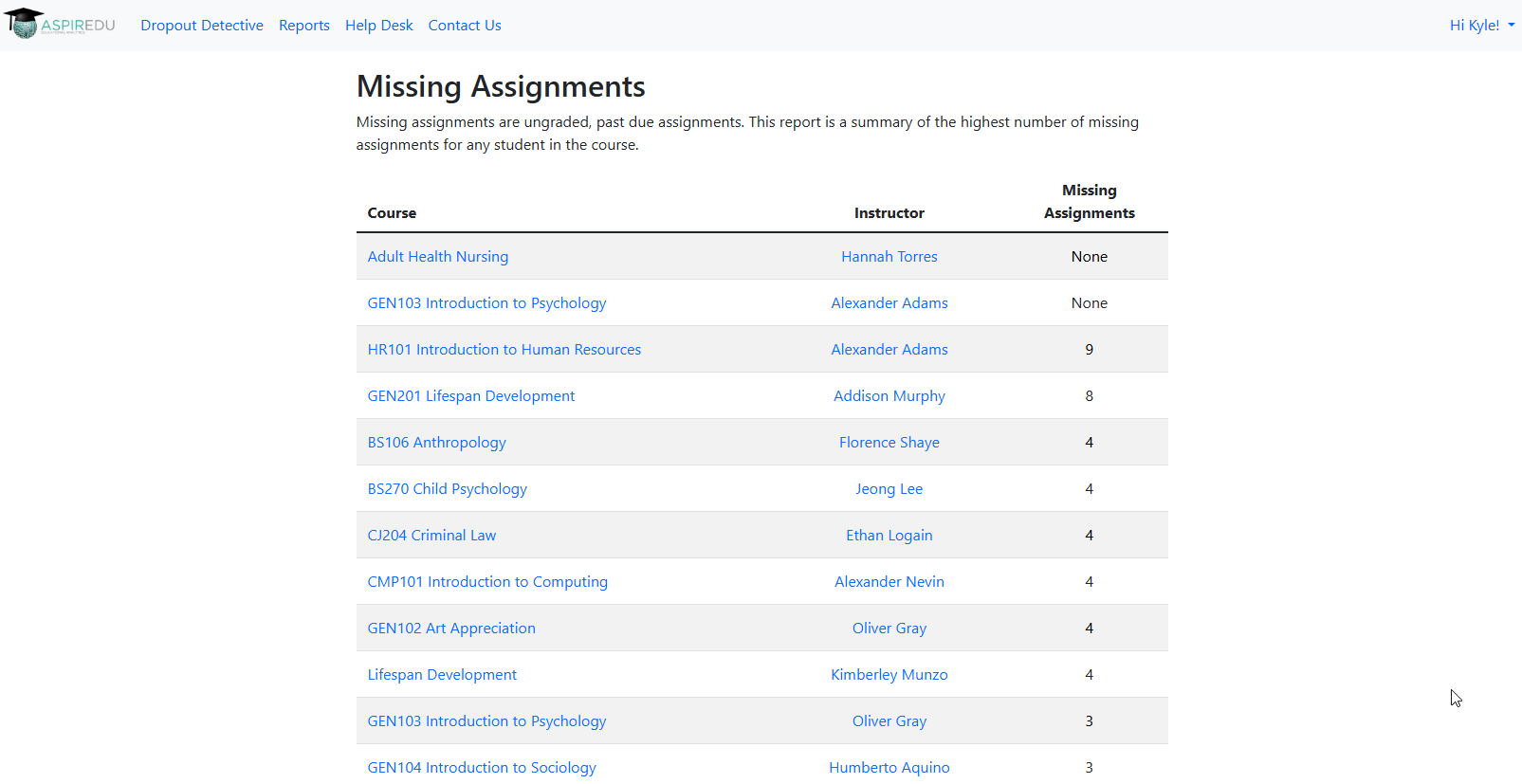
Step 7: View Missing Assignments Report 1:41

- Access the Missing Assignments report (not downloadable).
- This report summarizes the highest number of missing assignments for each student in each course.
Step 8: Identify Courses with Old Due Dates 2:08
- Use the Missing Assignments report to identify courses with old due dates.
-
Step 9: Download Submission CSV 2:25
- Locate the Submission CSV report.
- Click on the Download button.
- Wait for the green notification indicating it is ready.
Step 10: Review Submission Details 2:43
- The submission report will show:
- Student SIS ID
- Student name
- Course ID
- Course name
- Grade in the course
- Due date of assignments
- Submission date of assignments.
Step 11: Assess Student Participation 3:03
- Use the reports to evaluate:
- Student participation in coursework
- Attendance in the course
- Submission of assignments
- Outstanding missing assignments.
Cautionary Notes
- Ensure that you have the necessary permissions to access these reports.
- Verify that A+ or Roll Call attendance is enabled in Canvas before attempting to download reports.
Tips for Efficiency
- Please review attendance and assignment reports regularly to stay informed about student performance.
- You can use the Missing Assignments report at the beginning of each term to identify potential issues early.
- You can familiarize yourself with the report layout for quicker navigation.
Need Help? Reach out to support@aspiredu.com.